
Add tasks to Todoist by voice with a physical button
Connect the Todoist voice screen in Puck Studio, speak a test task, and check the result in your Todoist account.
By puck. · Published · Facts checked
Use Talk to Todoist when you want to capture a task aloud and check it in your own Todoist account. This guide applies to devices whose firmware supports the Talk to Todoist screen in Puck Studio.
Before you start
Pair your device with Puck Studio and open its layout. Check that Talk to Todoist is available under Screens. You’ll need a network connection, a configured Puck voice relay, and permission to read and write tasks in the Todoist account you plan to use.
Connect Todoist and send the voice screen to Puck
- In Puck Studio, open Connections → Todoist voice. Follow the authorization flow and grant access to the Todoist account where you want your task to appear. The official Todoist MCP service gives the voice relay access to the authorized task tools.
- In Studio’s Screens, add Talk to Todoist to your device layout. Select the account you just linked and choose Send to Puck.
- On your Puck, open Talk to Todoist. If you only see Todoist Today, return to Studio and check which screen you added. Todoist Today has its own read-only connection for displaying open tasks.
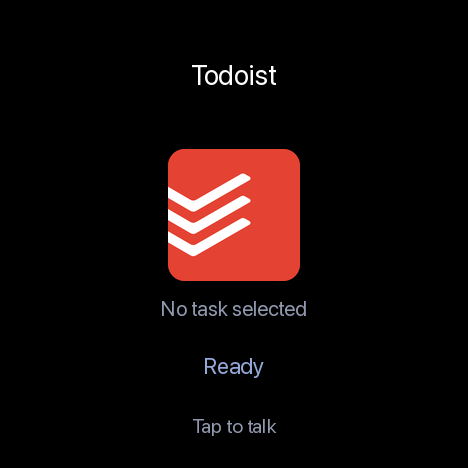
Puck Studio’s rendered Talk to Todoist screen shows its ready state before you make a request.
Speak one task and check its destination
- On Talk to Todoist, use your device’s voice control to start a session. Wait for Listening or the microphone-ready vibration, then speak near the Puck.
- Say “Create a task called Pack my charger.” You can name a destination, such as your Inbox. Wait for the reply. The Created indicator appears briefly after Todoist verifies the action.
- Open the same account in Todoist and search for Pack my charger. Check its title and project. If the project differs from the one you intended, open the task in Todoist and move it.
- To try a follow-up on that test task, say “Complete the task we just created” in the same conversation. The workflow uses the verified task ID from that conversation. Check for Completed on the display and check the task in Todoist. Use the voice control again to stop the session.
If a task is missing
Check the authorized account and search across projects before repeating a request. If the voice screen is missing, check the installed firmware, selected account, and applied Studio layout. If voice starts but the task never receives a confirmation, check network and relay connectivity and the Todoist voice account’s write authorization.
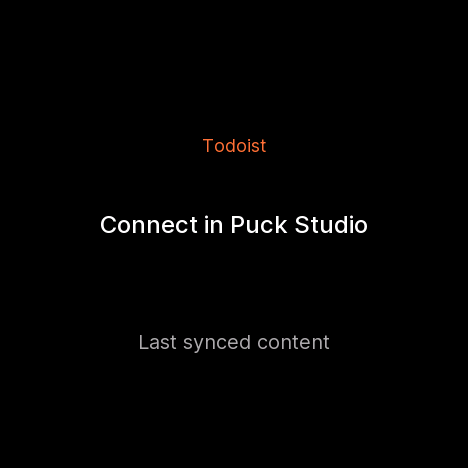
This Studio preview shows the read-only Todoist screen prompting for a connection. For voice capture, select Talk to Todoist.
Todoist’s own Quick Add is a good option when the app is already open or you want to choose the destination on screen. The physical button can be useful when you have a task in mind and the phone is still in your pocket.